
Our Obsession is Call Recording
Being obsessed with call recording means more than just clear recordings. It means your transcripts are more accurate, feeding the AI-driven world. It means your recordings are accessible, streamlining compliance. It means your data is safe, secure, and absolutely protected.



 11001 0101001100 1101001100 1101001100 11010
Trusted by the most demanding companies in compliance-critical industries









SETTING US APART
AI‑DRIVEN POST‑CALL ANALYTICS. INSIGHTS ON DEMAND. BUILT FOR FLEXIBILITY, CONTROL, AND COMPLIANCE.
Turn recorded conversations into actionable insight without sacrificing control.
AI‑driven post‑call analytics on demand in IXCloud allow reviewers to request summaries, sentiment analysis, and PII redaction only for the calls that you choose. Teams gain faster insight and reduced review time while preserving human oversight and compliance‑caliber governance.
SETTING US APART
Fully Native Microsoft Teams Call Recording. Built for Compliance. Trusted by Microsoft. And Ready to Support Conference Mode.
Capture every Teams call, meet every regulation, and stay ahead of Microsoft updates,
all with a solution certified by Microsoft and trusted by some of the most demanding enterprise customers on earth, from top AI companies to financial institutions and federal agencies.
SETTING US APART
Regulations are strict – our recording standards are stricter.
Feature-rich automation, flexible configuration, and industry-wide integration delivers end-to-end compliance call recording for the most demanding clients on earth – from government to private sector.
SETTING US APART
True Compliance Call Recording is Built on Trust – and Trust
Relies on Security
Numonix is hyper-focused on security, incorporating multi-layer encryption, private endpoints, and many other cutting-edge features to secure your data. Our business is ISO27001 certified, and IXCloud has a SOC2 Type II accreditation. Beyond our industry-wide integration support, we are proud to have a Microsoft Certified Solution with the full backing of Microsoft Premier Support.
SETTING US APART
Superior Call Recording
Fuels the AI-Driven World
Numonix believes call recording technology is more than just a nice-to-have piece of a larger solution – it’s the critical component that makes investments in AI, analytics, and intelligence work.



SETTING US APART
AI‑DRIVEN POST‑CALL ANALYTICS. INSIGHTS ON DEMAND. BUILT FOR FLEXIBILITY, CONTROL, AND COMPLIANCE.
Turn recorded conversations into actionable insight without sacrificing control.
AI‑driven post‑call analytics on demand in IXCloud allow reviewers to request summaries, sentiment analysis, and PII redaction only for the calls that you choose. Teams gain faster insight and reduced review time while preserving human oversight and compliance‑caliber governance.
SETTING US APART
Fully Native Microsoft Teams Call Recording. Built for Compliance. Trusted by Microsoft. And Ready to Support Conference Mode.
Capture every Teams call, meet every regulation, and stay ahead of Microsoft updates,
all with a solution certified by Microsoft and trusted by some of the most demanding enterprise customers on earth, from top AI companies to financial institutions and federal agencies.
SETTING US APART
Regulations are strict – our recording standards are stricter.
Feature-rich automation, flexible configuration, and industry-wide integration delivers end-to-end compliance call recording for the most demanding clients on earth – from government to private sector.
SETTING US APART
True Compliance Call Recording is Built on Trust – and Trust
Relies on Security
Numonix is hyper-focused on security, incorporating multi-layer encryption, private endpoints, and many other cutting-edge features to secure your data. Our business is ISO27001 certified, and IXCloud has a SOC2 Type II accreditation. Beyond our industry-wide integration support, we are proud to have a Microsoft Certified Solution with the full backing of Microsoft Premier Support.
SETTING US APART
Superior Call Recording
Fuels the AI-Driven World
Numonix believes call recording technology is more than just a nice-to-have piece of a larger solution – it’s the critical component that makes investments in AI, analytics, and intelligence work.

Secure, Flexible Compliance Call Recordings
Cloud-native, on Premises, or Hybrid.
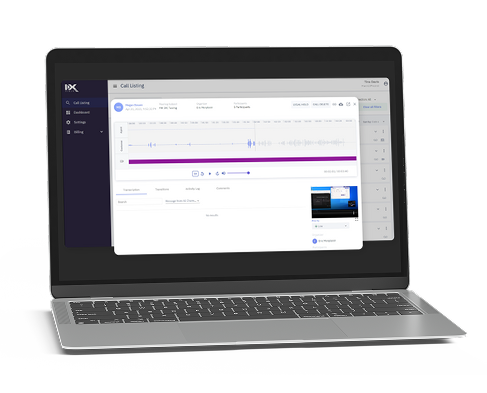
IXCloud is a cloud-native compliance recording solution that consolidates all your communications into a secure central repository. IXCloud redefines versatility, providing the ability to record, store, and analyze interactions in the cloud.
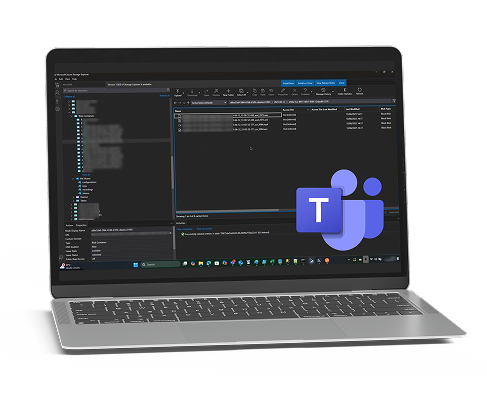

SECURE, FLEXIBLE COMPLIANCE CALL RECORDINGS.
CLOUD-NATIVE, ON PREMISES, OR HYBRID
Numonix securely captures your call recordings with an industry-leading suite of full compliance features and leading platform integrations.
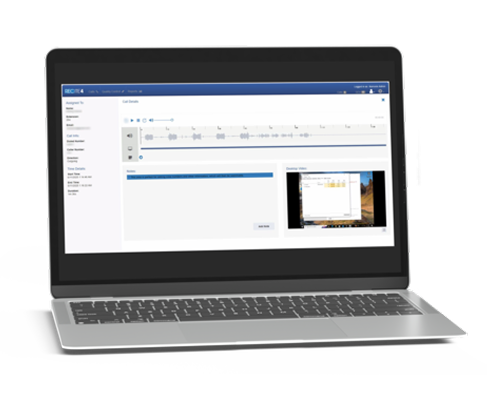
Secure, On-premise, Flexible
RECITE securely enables you to record and listen to your calls the way you want to. With customizable widgets and dashboards, customizable replay permission levels, various recording modalities, canned and modifiable reports, and multiple options
for built-in storage support, we put the right recording intelligence at your fingertips.
If your recording isn’t compliant, it isn’t complete.
ISO 27001 certified. SOC 2 Type II accredited. Fully audited.
Numonix’s commitment to compliance goes beyond our 3-layer encryption to include ISO 27001 certification and SOC 2 Type II accreditation.
These globally recognised standards are independently audited and rigorously maintained — confirming we meet the highest benchmarks for data handling, availability and confidentiality. It’s why some of the most regulated industries trust us to help them meet theirs.


 Blog
BlogAI Is Speeding Up Decisions. Can You Still Verify the Conversation Behind Them?
As AI agents make more decisions than people can review, the original call recording becomes the source of truth. Learn why enterprises need a way back from…
READ MOREAI Voice Is Now a Governed Communications Workload
Microsoft Teams Phone Agent brings AI voice into enterprise communications. Organizations must decide how AI-handled calls fit into recording, retention, access and compliance policies.
READ MOREWhen You Can’t See How AI Thinks, You Have to Control What It Knows
As AI models become harder to inspect, the information they receive becomes more important. A controlled AI Intake Layer helps organizations govern, preserve, and trace the enterprise…
READ MOREAI has Joined the Meeting. And Suddenly, Compliance Is More Complex.
AI is no longer just summarizing Teams meetings it is beginning to participate in them. As AI-generated information shapes discussions and decisions, organizations need more than a…
READ MOREThe Three Artifact Problem
Microsoft Teams Call Queues can generate an original recording, transcript, and AI recap from one conversation. Learn why keeping those artifacts connected to a governed source of…
READ MOREWhy Enterprise AI Needs Governed Conversation Inputs
Learn why enterprise AI needs governed conversational inputs, not just access to more data. Compliance-caliber recording helps turn calls and meetings into trusted, traceable context through policy-driven…
READ MORE Client testimonials
“We capture everything without having to think about it.”
Each person had to click ‘record,’ and honestly, that’s the last thing I’m thinking about when I’m trying to help someone. Now, anyone who calls those numbers is automatically recorded, and we capture everything without having to think about it.
“We were very impressed…”
“…the IXCloud implementation was a clear success for us.”
“We were up and running in about an hour”
“We were up and running in about an hour, fully migrated in a day – and compliance is now easy with built‑in audit trails and self‑service access.”
“Best compliance recording platform”
“I strongly believe Numonix is the best compliance recording platform I’ve seen in the last 25 years. It’s rare to find a product this capable paired with a team that genuinely treats you like a partner”
“It’s easy on the eye, easy to search, easy to play back”
“Compared to other platforms we’ve used, it’s far easier to administer. It’s easy on the eye, easy to search, easy to play back — we’re quite happy with it so far.”
“Partnering with Cisco Since 2013”
“Numonix has worked closely with Cisco since 2013
when it launched its first Cisco on premises solution.”
“We couldn’t have launched without it.”
“Numonix’s TRAAS let us embed compliant Teams recording into our AI product without delay — We couldn’t have launched without it.”
“Numonix is a Top Tier Microsoft Partner”
“Numonix is a Top Tier Microsoft Partner and a go-to solution for Teams call recording in compliance-heavy environments.”
“Numonix has provided outstanding support throughout our engagement”
“We have been a customer of Numonix for 3 years, and we are in a highly regulated business. IXCloud has been an invaluable resource for recording our Microsoft Teams interactions, simplifying our compliance audits, and enabling us to remain compliant with various regulations. Numonix has provided outstanding support throughout our engagement, and we consider it to be a critical supplier to our business…”
“Numonix’s service is exceptional!”
“Having RECITE integrated into our Lync solution has expanded our call recording capabilities, improving our order verifications and dispute resolution. And Numonix’s service is exceptional!”
“Numonix has provided outstanding support “
“Numonix has provided outstanding support throughout, and we consider it to be a critical supplier to our business.”
“Numonix team has been unbelievable”
“The Numonix team has been unbelievable. From installation to complex customizations, they pushed hard to ensure a successful implementation.”
“Numonix has been an invaluable resource”
“Numonix has been an invaluable resource for recording our Microsoft Teams interactions, simplifying our compliance audits, and enabling us to remain compliant with various regulations.”

RESELLERS
We work through a global network of qualified reseller partners. Contact us for information on a reseller partner near you.




OEM Partners
The top brands in the custom intelligence AI space have partnered with Numonix to integrate our Teams Recording-as-a-Service into their solutions.

Integration Partners
Numonix supports all industry-leading UC platform integrations.
INDUSTRIES
Call Recording Quality, Total Trust, and Best-in-Class Security: When it comes to compliance call recording, some things are universal.
- Superior call recording quality: this is the data that feeds the AI-driven world.
- Total trust: ISO 27001 and SOC 2 type 2 level standards, a Microsoft certified engineering stack with the full backing of Microsoft Premier Support, and deep domain expertise across all major integration platforms.
- Best-in-class data security: with password-less authentication and 3-layer encryption, your data is protected.


HEALTHCARE
Secure, HIPAA-aligned recordings for patient interactions.

GOVERNMENT
Resilient, encrypted recording for public sector agencies

CONTACT CENTERS
Quality assurance and dispute resolution through call capture.

FINANCIAL SERVICES
Compliant recording for traders, brokers, and financial advisors.

COLLECTIONS AGENCIES
Strict compliance and secure sensitive debtor data.

EDUCATION
Fostering trust and supporting effective education delivery.

AI & ML
Training AI with clean, reliable voice data at scale.
Serious about call recording?
Start with the experts.
Discover how Numonix helps organisations capture voice interactions right the first time — securely, accurately, and at scale.